What this is
KYC is sent per contact. Normally IzzyTap emails the contact a secure link and they complete the form from there. If a contact has no email on file, no email can go out, but IzzyTap still makes the same secure link. You copy it and share it with the person yourself, any way you like.
Note
The link only exists once you have sent the form to that contact. Sending is what creates the link. Until you send, there is nothing to copy.
Send the form first
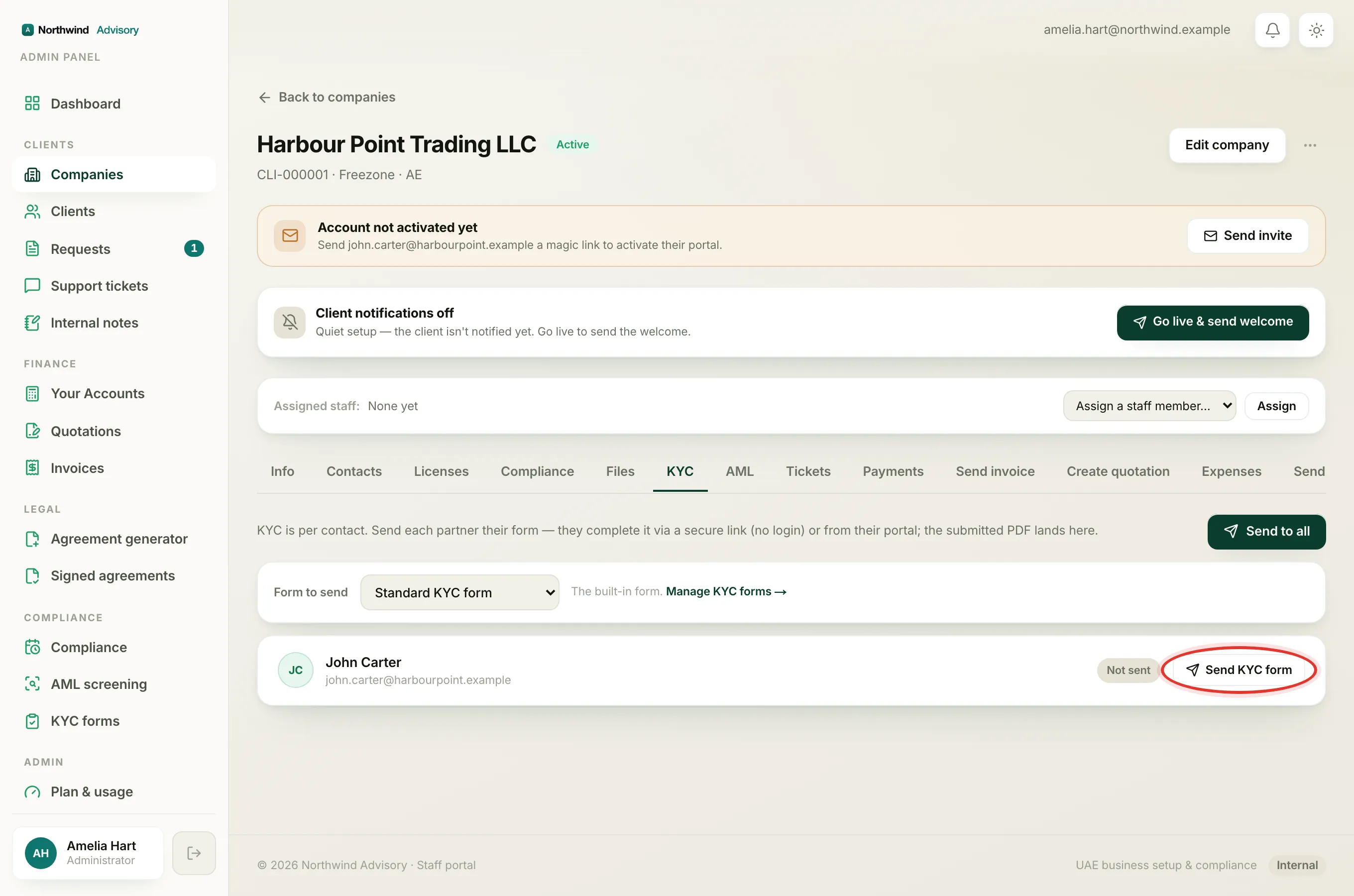
- Log in to your workspace.
- In the left menu, under Clients, click Companies.
- Click the company the contact belongs to.
- On the company page, click the KYC tab.
- In the Form to send box near the top, pick which form to send. See choose which KYC form to send if you are not sure.
- Find the contact in the list. A contact with no email shows no email under their name.
- Click Send KYC form next to that contact.
Because there is no email address, nothing is sent by email. The status chip still moves to Sent, and the secure link appears on the row for you to copy.
Copy the public link
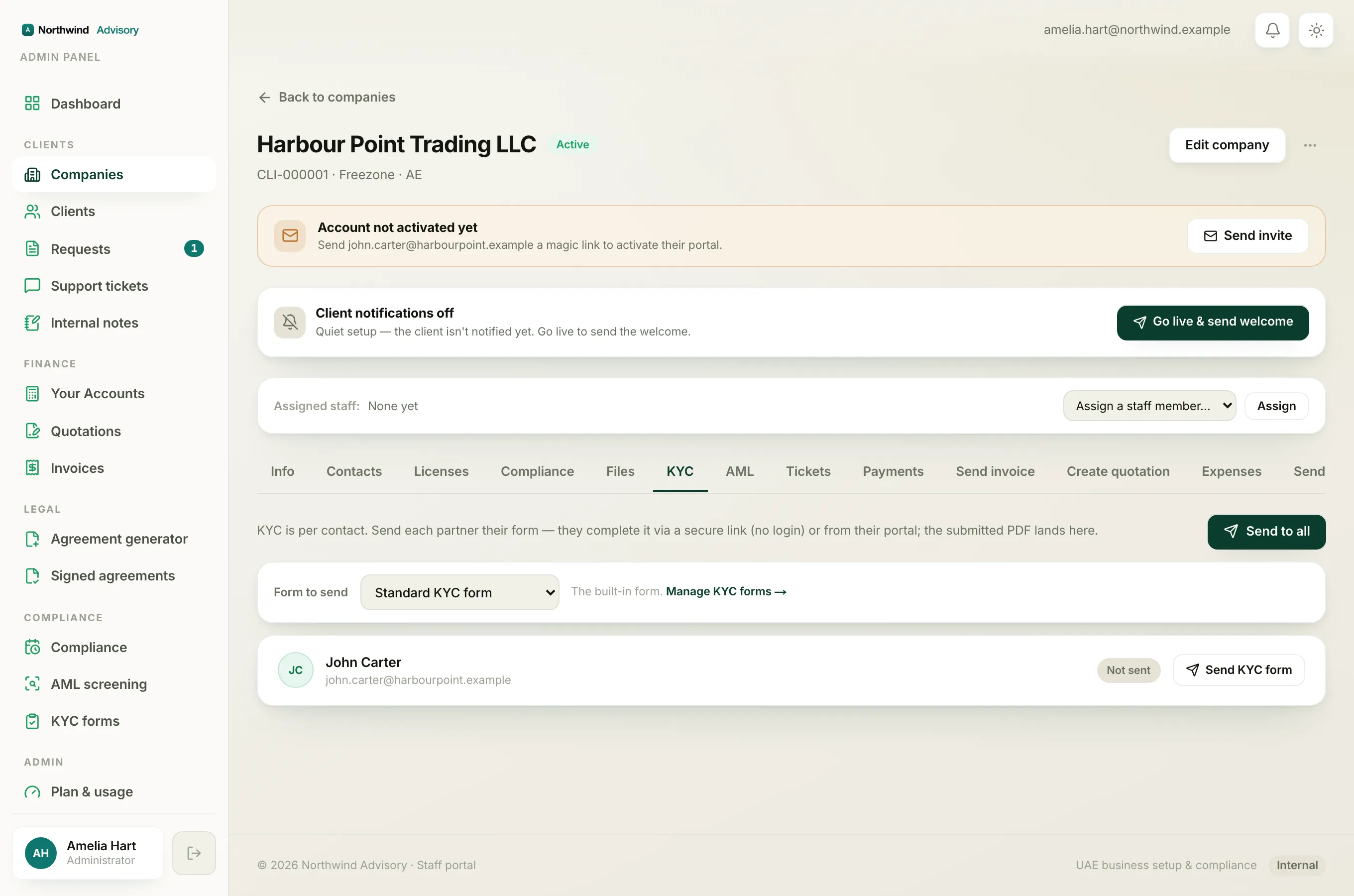
After you send, a Public link box appears under that contact's row. This is their secure link.
- Select the whole link in the Public link box.
- Copy it.
- Share it with the contact however suits them, for example on WhatsApp, in a chat message, or by reading it out.
The contact opens the link, fills in the form step by step, signs at the end, and submits. They do not need an account or a password.
Important
The link is single-use and stays valid for 14 days. See how long a KYC link stays valid. If it lapses before they finish, send again to make a fresh one.
Sending from the KYC forms page instead
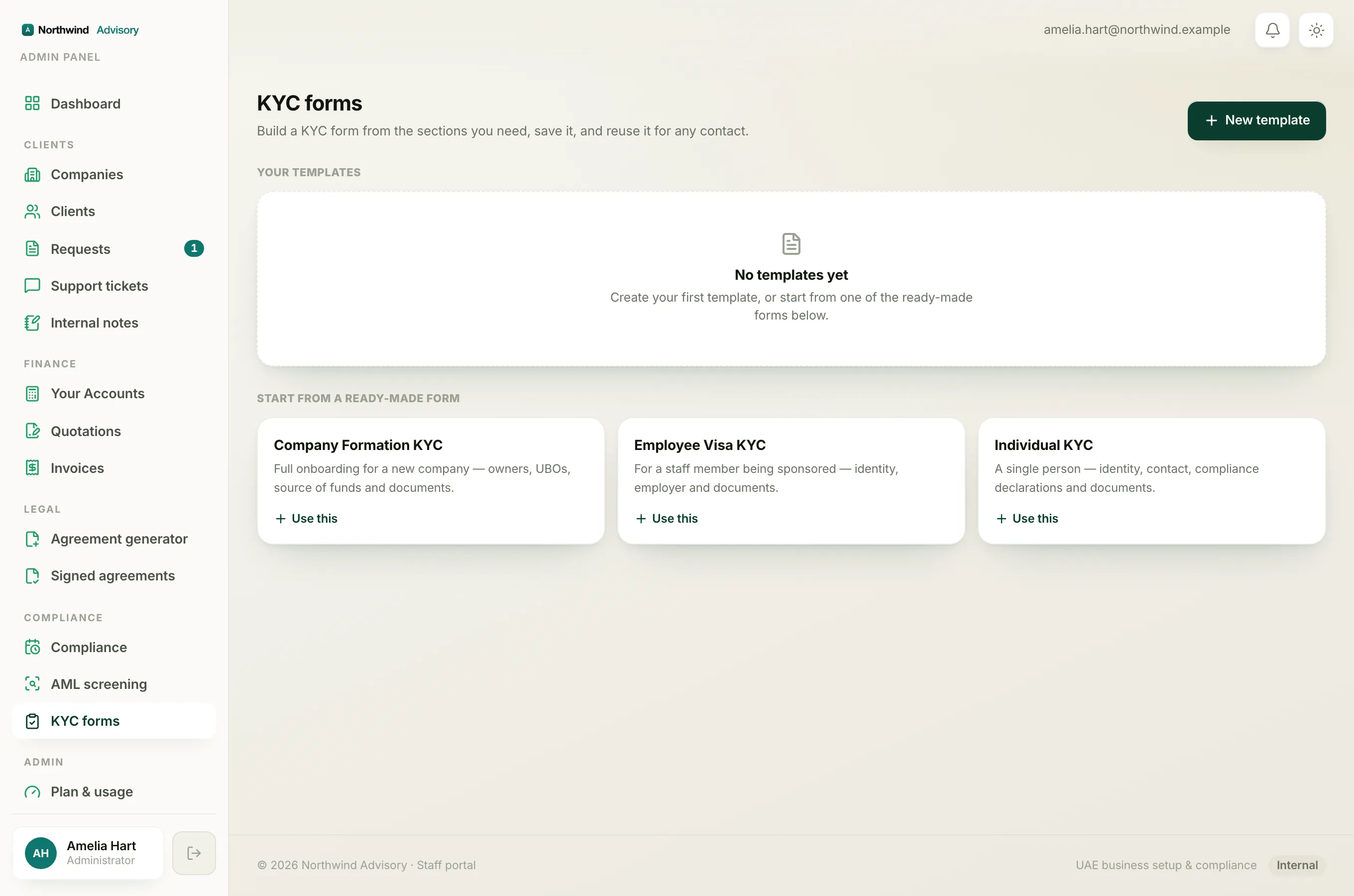
If you send a saved form from the KYC forms page rather than the company tab, the same thing happens for a contact with no email. The green confirmation reads Ready for [name] and shows the secure link in a box right there, ready to copy and share.
A tidier alternative: add an email
If you would rather IzzyTap email the link for you, add an email address to the contact first, then send. To add or edit a contact's email, see manage the contacts on a company. Once the contact has an email, every future send goes out automatically.