When you upload a spreadsheet of clients, IzzyTap checks every row and shows you a preview before anything is created. Each row gets a coloured chip so you can see at a glance what will happen. This article explains those chips, why a row gets flagged, and how to fix the rows that will not import.
Where the preview appears
- Log in to your workspace.
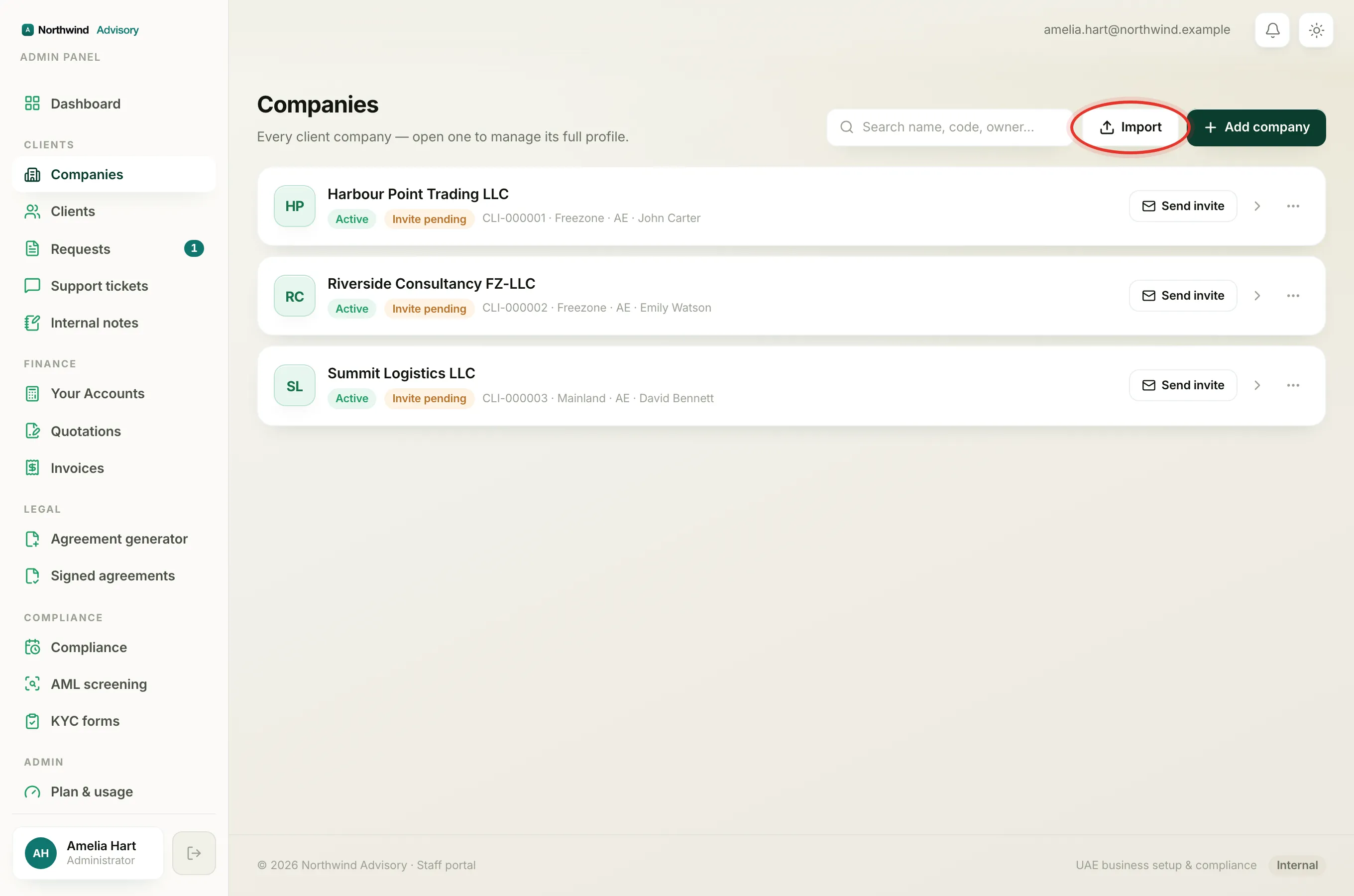
- In the left menu, under Clients, click Companies.
- At the top right, click Import.
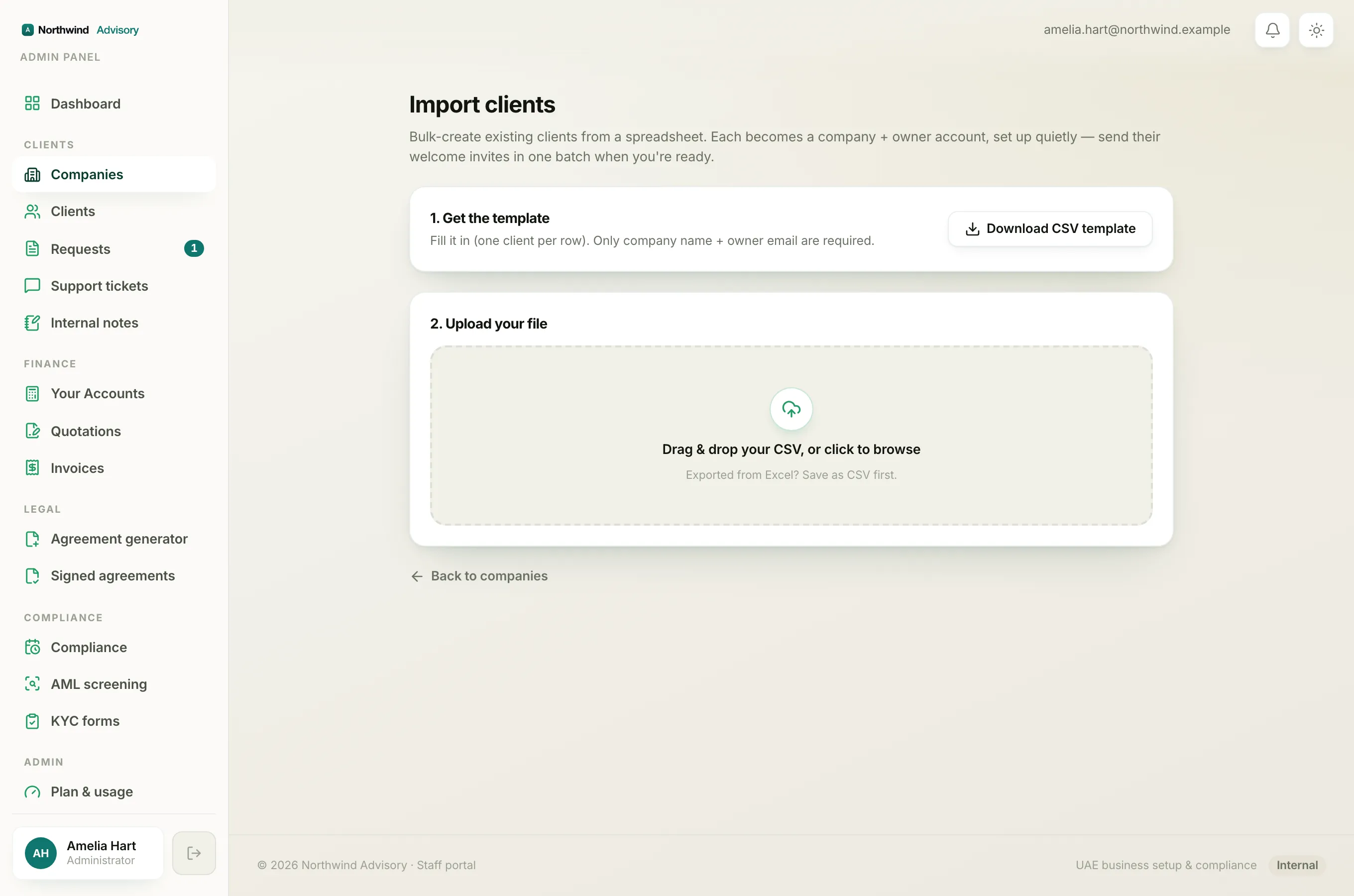
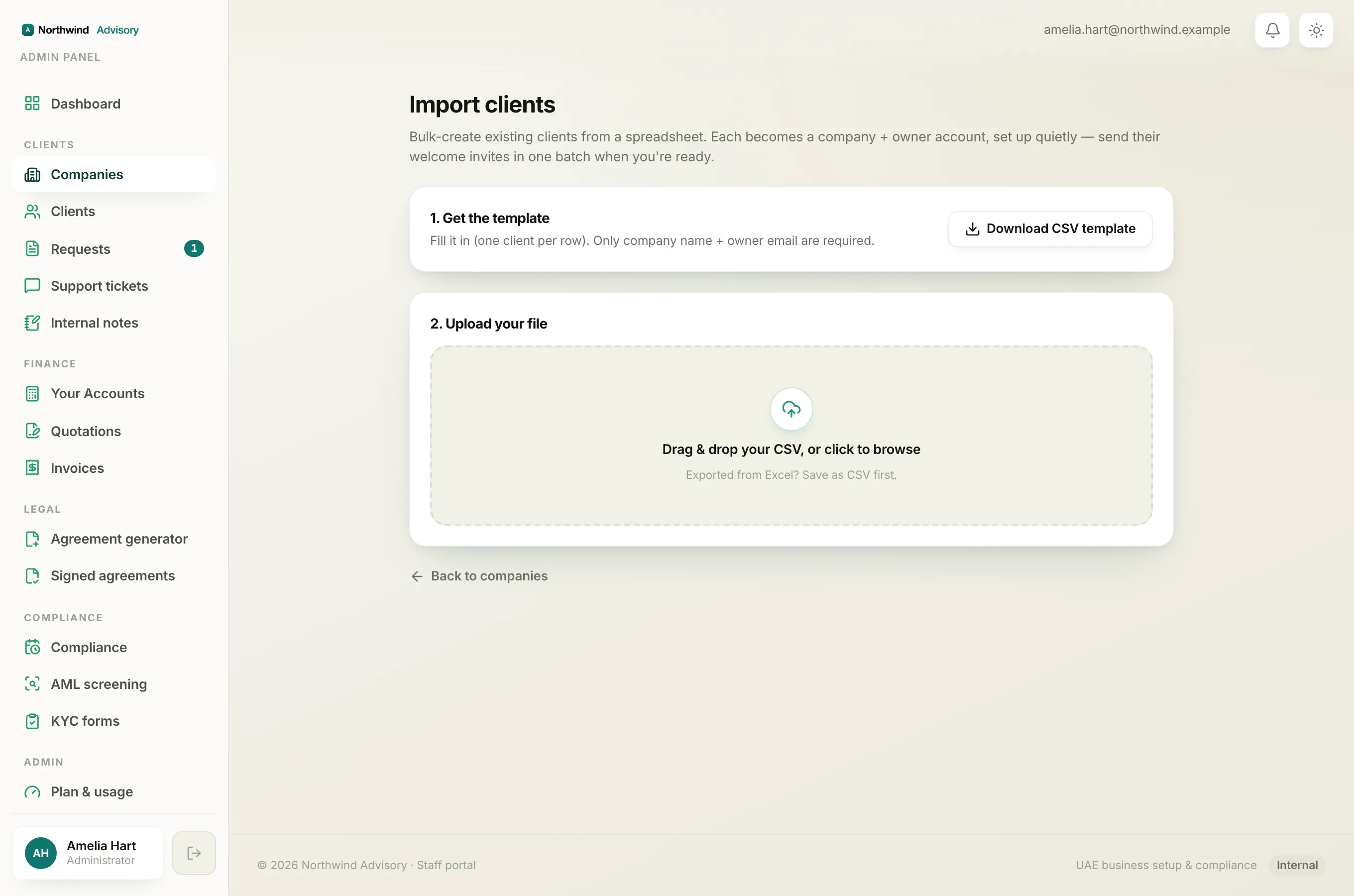
- Download the CSV template if you have not already, fill it in (one client per row), then drag your file into the upload box or click to browse.
As soon as the file is read, the preview opens. Nothing has been created yet. At the top you see three summary pills, for example 5 to create, 2 skipped and 1 errors. Below that, every row is listed with its own chip.
What each row chip means
- Will create (forest chip). The row is valid and the company does not exist yet. It will be created when you go ahead.
- Skip (grey chip). The row is fine but will be left out, because it would be a duplicate.
- Error (red chip). Something in the row is wrong and must be fixed before it can import.
Under each row you will see the reason in small grey text next to the email.
Reasons a row shows Error
A red Error means the row failed a basic field check. The reason will be one of:
- Missing company name. The
company_namecell is blank. - Missing owner email. The
owner_emailcell is blank. - Invalid owner email. There is an email, but it is not a valid address (for example a missing @ or no domain).
Only the company name and the owner email are required. Everything else in the template (owner name, phone, type, TRN, industry, address) is optional and never causes an error.
Reasons a row shows Skip
A grey Skip means the row is valid but would create a duplicate:
- Company already exists. A company with that name is already in your account.
- Duplicate row in file. The same company name appears earlier in the same spreadsheet, so only the first one is kept.
Matching is by company name and ignores upper and lower case and spaces at the ends.
Note
There is no limit on how many clients you can have, so an import is never cut short for a client count. Rows are only ever skipped for a duplicate or fixed for an error, as above.
Fix the rows and re-import
The rows marked Will create are ready. To bring in a skipped or errored row, fix it in your spreadsheet:
- For an Error row, fill in the missing company name or owner email, or correct the email address.
- For a Duplicate row in file, delete the repeated line, or rename it if it really is a different company.
- For Company already exists, leave it out. That company is already in your account.
- Save the file as CSV again.
- Back on the Import screen, click Choose another file and upload the corrected version.
You can safely re-upload a file that contains companies you already imported. Those rows simply show Skip the second time, so nothing is duplicated.
Errors that stop the whole file
If something is wrong with the file itself, you see one message instead of a preview:
- A missing required column, for example Missing required column "company_name". Use the template header row.
- The file is empty or No data rows found in the file.
- Too many rows. The limit is 500 rows per file, so split a larger list and import it in parts.
Fix the file and upload it again.
Tip
Exported from Excel or Google Sheets? Save it as a CSV file first. The uploader only reads CSV.
Once the preview looks right, see Send welcome invites after an import for the next step.